Guides & Walkthroughs
Church By Faith Walkthrough: From Visitor Inquiry to Follow-Up
By Church By Faith Team · · 5 min read
Follow one visitor through Church By Faith, from the questions they answer about their visit to the moment a pastor follows up, using the real screens in English and Spanish.
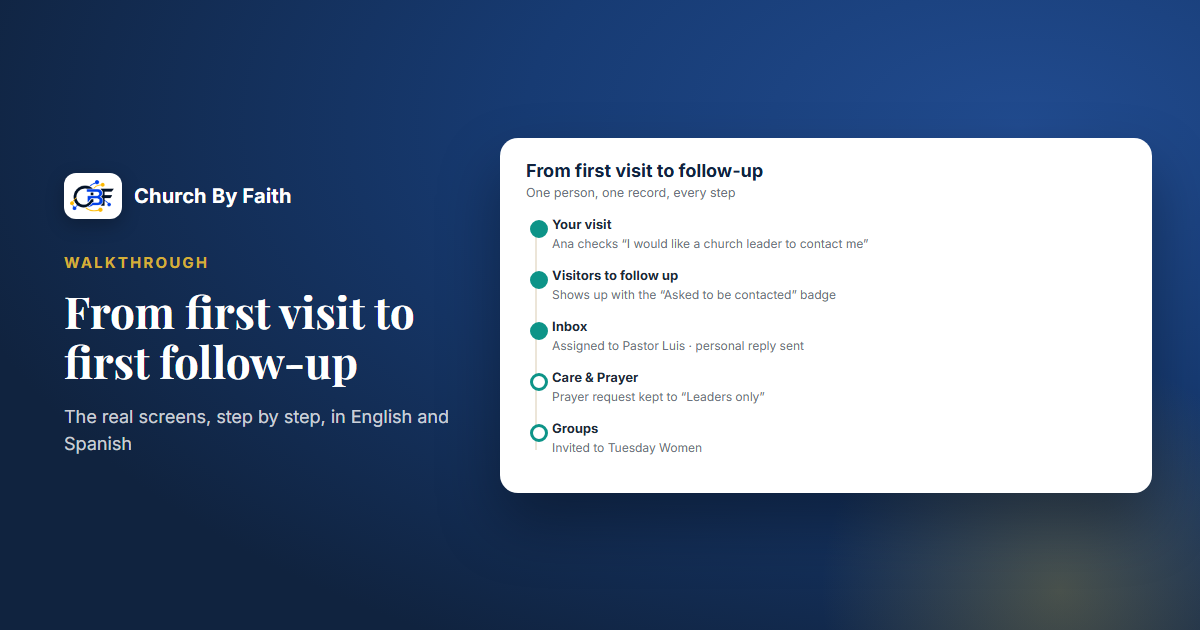
Visitor follow-up works best when everyone on your team can see the same picture: who came, what they asked for, and who is going to call them back. This walkthrough follows one visitor, Ana, through the actual screens in Church By Faith, with the English and Spanish labels your team will see. Each step shows where to look and what to do.
Before you start: what to set up
A few things make the rest of this walkthrough work. Your Church Owner or an administrator can take care of them in an afternoon:
- Give the right people the right roles. The "Visitors to follow up" list is visible only to staff with the private pastoral permission. Decide who on your team handles newcomers, and check that their roles include it.
- Turn on the welcome automation. Under Communications → Automations (Comunicaciones → Automatizaciones), the starter sequence Guest welcome (Bienvenida a invitados) ships as a Draft. Review the email, adjust the wording in both languages and switch it on.
- Set up the inbox channels you want. The Inbox (Bandeja de entrada) collects web prayer and care requests right away. Receiving email replies needs an inbound email domain, and texting needs your church's own number through Signal House plus carrier registration.
- Write a few reply templates. Under Message templates (Plantillas de mensajes), save an approved welcome reply so anyone on the team can answer warmly and consistently.
One honest note: Church By Faith does not have connect cards, a "plan a visit" page, kiosk sign-in or QR check-in. The steps below start when a visitor accepts an invitation and fills in their profile, or sends a prayer request from your website.
Step 1: Ana tells you about her visit
Ana visited on Sunday, and afterward your team sent her an email invitation. When she joined, she said she was a visitor, not a member. Today visitors cannot ask to join on their own: people join by invitation, or through a request form on a church website we built, and such a request waits with no access until an administrator approves it.
Once she has joined and signed in, Ana finds the Your visit (Tu visita) section on her profile. It asks five simple questions:
- First visit (Primera visita)
- How did you hear about us? (¿Cómo supiste de nosotros?)
- I would like a church leader to contact me
- Prayer request
- Interests
Ana marks her first visit, says a coworker invited her, ticks the box asking a leader to contact her, and mentions that she is new to the area.
If a visitor hasn't signed up at all, there is a second path. The public prayer form on your church website lets anyone submit a request, and those requests land in a queue marked From the website (Desde el sitio web).

Step 2: Find her in "Visitors to follow up"
On the People (Personas) page in the admin area, staff with pastoral permission see the list Visitors to follow up (Visitantes por contactar). Ana appears there with her first-visit date and an Asked to be contacted badge.
This is also where any pending requests to join show up (for example from a church website we built), so the same person who approves newcomers can see who wants a call. From here:
- Open Ana's profile to read her answers, including her prayer request.
- Note her preferred language and contact method. Her email and phone are visible only to staff with member-management permission.
- Decide who on the team will reach out.
If you switched on the Guest welcome automation, which runs when a guest registers, it can send a welcome email and add a tag, such as "new-guest," so you can find people like Ana again later. Automations only send email, send push notifications or add and remove tags. They don't send texts or make calls, so the personal contact is still up to your team.
Step 3: Work the conversation in the Inbox
Open Communications → Inbox (Comunicaciones → Bandeja de entrada). Conversations are sorted into ministry categories, including New Visitors (Visitantes nuevos) and Prayer Requests. Useful views for a newcomer team:
- Unassigned: nobody has picked it up yet.
- Assigned to me (Asignadas a mí): your own conversations.
- Waiting for reply: you've written and are waiting to hear back.
- Follow-ups due: conversations you promised to come back to.
Assign the conversation to the person who will call Ana. Add an internal note (never sent to Ana) such as "New to the area, coworker invited her, prefers Spanish." Then reply using your welcome template, adjusted so it sounds personal.
Replies go by email, or by text if your church has texting set up. Either way, Church By Faith checks that Ana has given consent for that channel before anything is sent. If your church has turned on Suggest a draft (Sugerir un borrador), the AI can offer a first draft or a translation, but a person always reviews and sends it.
If Ana says "call me after Thursday," snooze the conversation until Friday so it's out of the way until then.
Step 4: Keep her record up to date
Under Communications → Contacts (Comunicaciones → Contactos), each person carries a relationship badge. Ana starts as a First-time guest (Invitado por primera vez). When she has been coming for a few weeks, update it to Regular guest (Invitado habitual). When she joins the church, only staff with member-management permission can change her relationship to Member (Miembro).
Use Tags (Etiquetas) for things like "interested in women's group" or "wants baptism class." Segments (Segmentos) help you see the bigger picture. For example, a segment of people who "joined in the last 30 days" shows your whole newcomer group in one place.
Step 5: Hand off to pastoral care when needed
Sometimes a first conversation reveals something deeper: a loss, a marriage under strain, a need for prayer. That's when the care tools take over.
- Among the Care & Prayer (Cuidado y Oración) tools, the care queue (Cola de cuidado) collects care requests so the team is notified and nothing sits unseen.
- Prayer requests and the care queue work for every church. Online appointment booking is live today only for our founding ministry; where care appointments are used, the Follow-up (Seguimiento) screen reminds staff to check back after each one, with overdue items first.
- In the Inbox, the Pastoral Care category can be marked private, so only the right people see sensitive conversations.
Ana's prayer request can stay private too. When she submits requests later, she chooses who sees each one: Everyone at church, Leaders only or Private (Toda la iglesia, Solo los líderes, Privada). You can see more of these tools on the features page, and plan availability on the pricing page.
Quick checklist
- Assign pastoral roles to the people who follow up with newcomers.
- Review and switch on the Guest welcome automation in both languages.
- Check "Visitors to follow up" on the People page each week.
- Assign every New Visitors conversation in the Inbox and add an internal note.
- Reply only on channels the person has consented to.
- Use snooze and "Follow-ups due" so promises don't get lost.
- Update the relationship badge as the person moves from guest to member.
Want to see these screens with your own team? Contact Church By Faith for a walkthrough.